
Features
Every feature, one by one
What Irumudi does today, with screenshots from the app. What you see in the library, the music and the listings depends on what has been reviewed and published, and the app is not on the stores yet.
Your Deeksha
The days, the habits and the reminders that keep you on track.
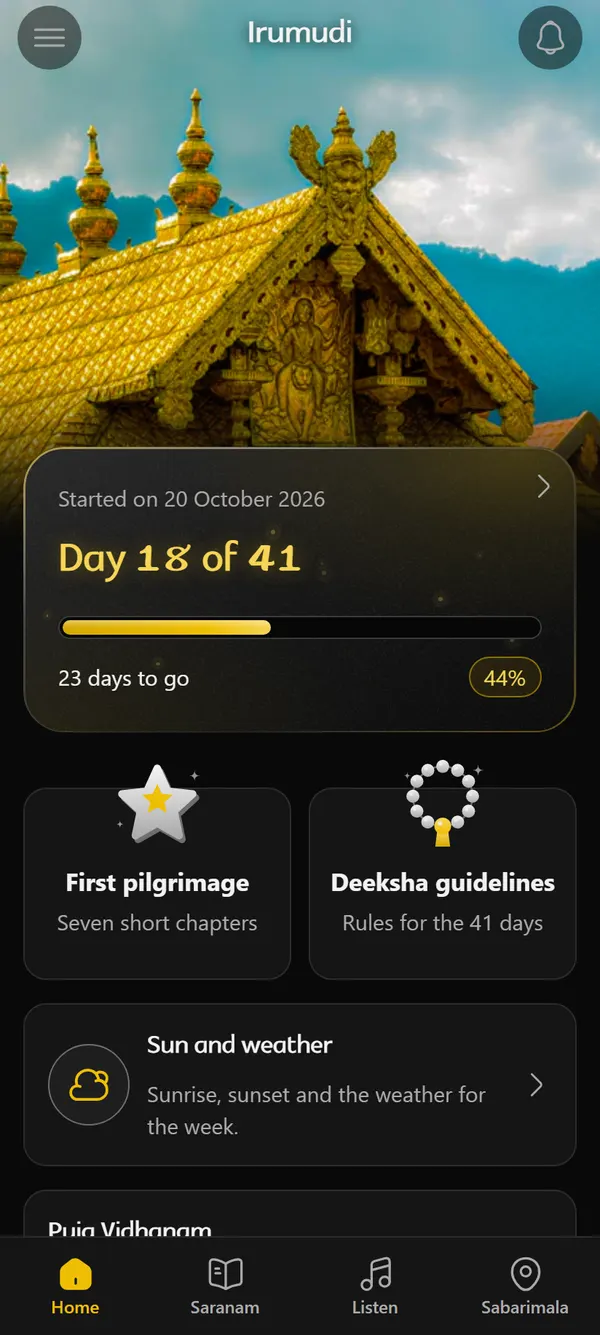
The Deeksha tracker
Choose how many days you are observing and the date your Deeksha began. Started already? Enter the real date and the app finds today’s day. A start date in the future shows a countdown.
The day comes from the calendar, never from taps, so a missed day never changes the day number. Home shows “Day N of T”, the days to go and a progress bar.
- Length and start date can be changed later, from the menu under Journey, or with the pencil beside “Started” on the Your Deeksha page.
- A finished journey is kept in a history. Starting a new one does not overwrite the old, and you can make an old one current again.
Check-ins and the journey calendar
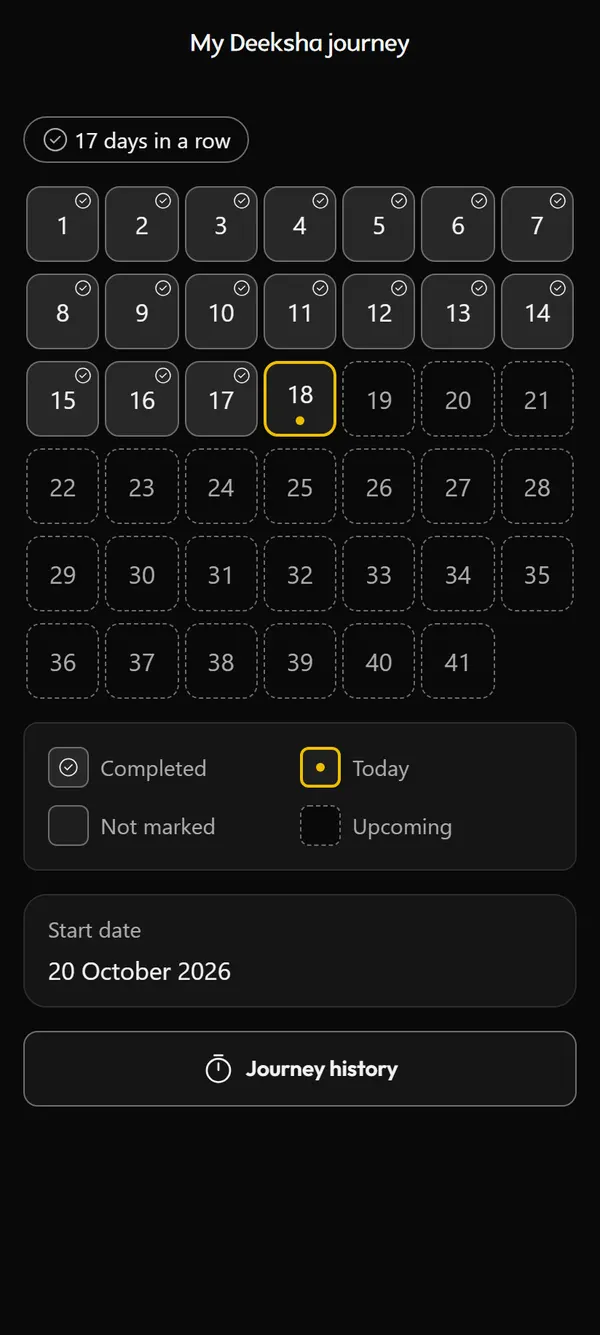
Opening the app never marks a day. You mark it, on any day up to today, and you can undo it. The calendar shows completed days, today, days not marked and days still to come, each with its own symbol so colour is never the only clue.
A “days in a row” count is shown separately from the day number and is never a competition. On your last day a quiet summary shows the dates and how many days you marked.
Day by day, a card for each
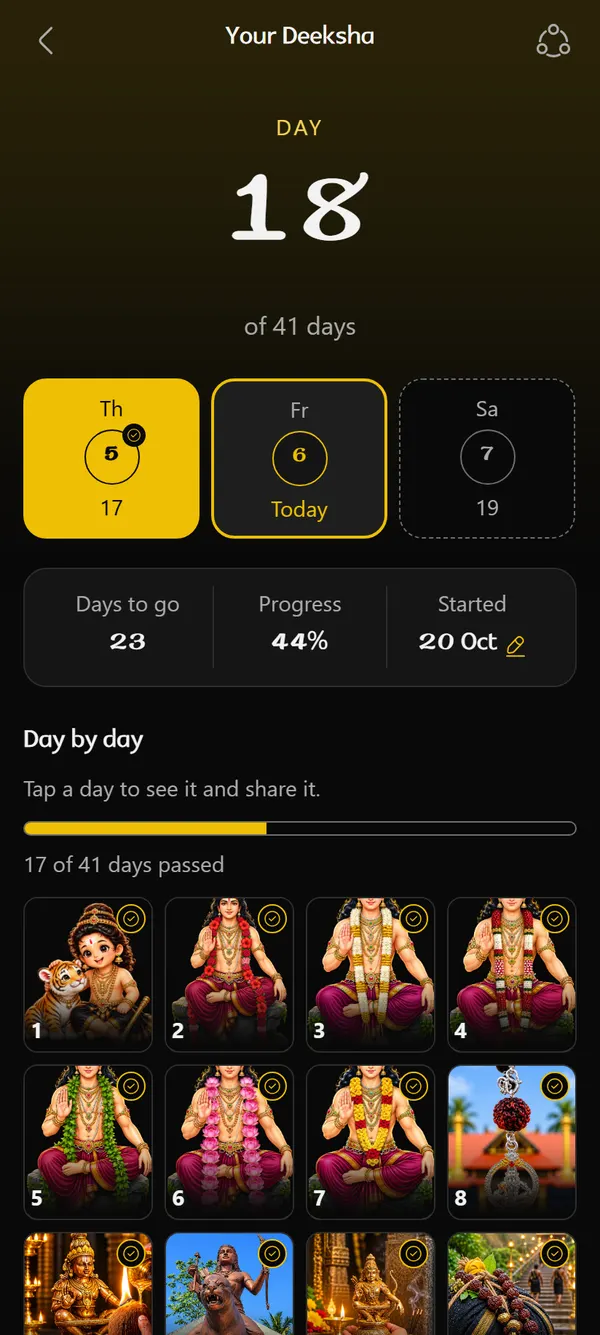
The Your Deeksha page opens on today. Each day is a card with its weekday, date and day number, a gold tick once it has passed, and the sunrise and sunset times if you have saved a place. Three cards fit on the screen, and they snap as you slide.
Below them a grid shows one picture for each day. Tap a day to see it. Nothing here compares you with anyone else.
A checklist you shape
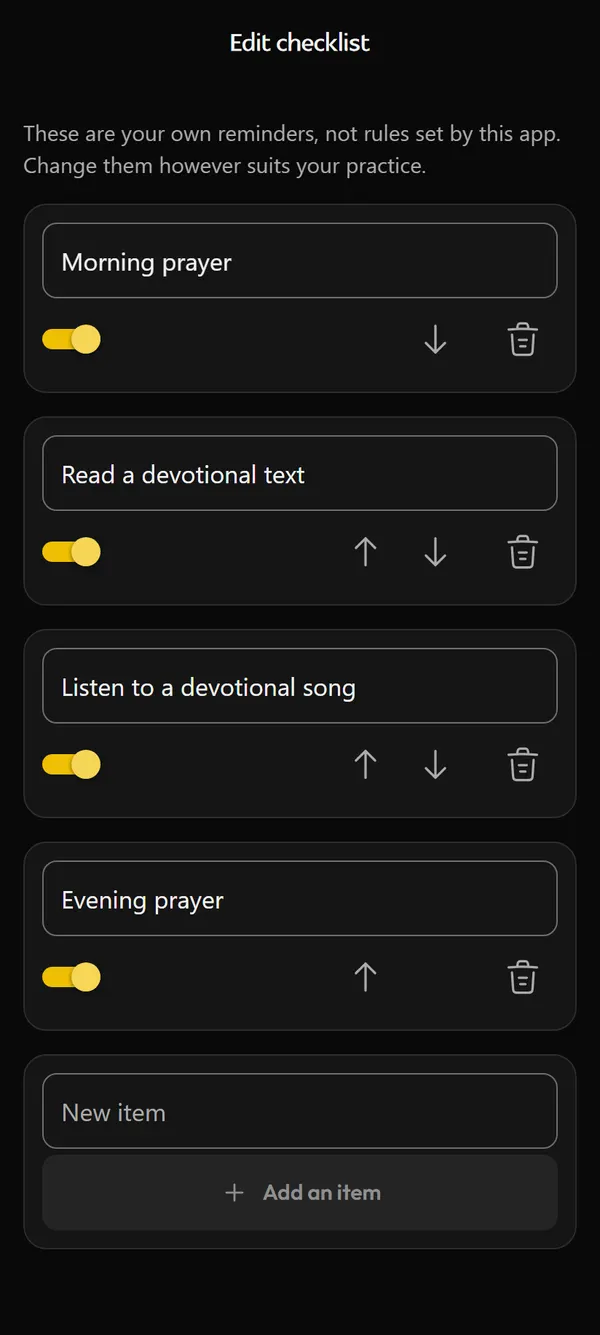
The starters are morning prayer, reading a devotional text, listening to a devotional song and evening prayer. They are your own reminders, not rules set by the app, and you can add more.
Home shows how many items are done today.
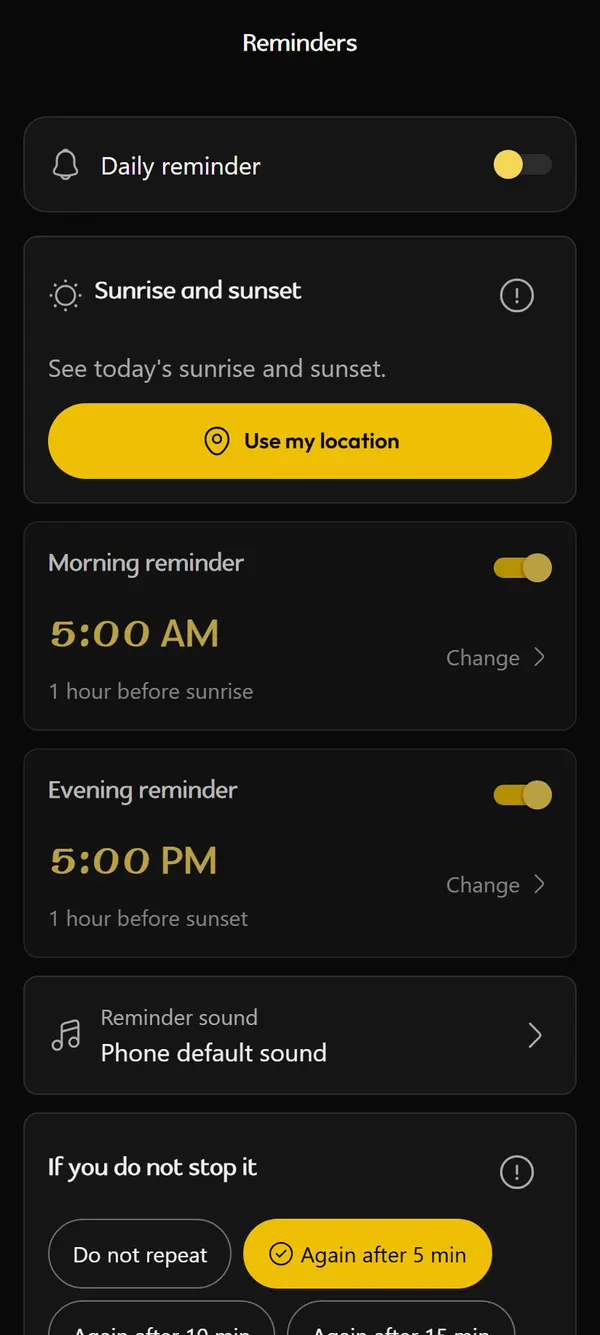
Morning and evening reminders
Each reminder can ring 30, 60, 90 or 120 minutes before sunrise (morning) or sunset (evening), worked out on your phone, or at a time you pick. The default is an hour before. Until a place is known the times are 5:00 AM and 5:00 PM.
If you do not stop it, it can ring again after 5, 10 or 15 minutes, or never, and a snooze is kept even if the app is closed. You may choose a sound file of your own. Reminders stop by themselves after your last day, and the phone asks for notification permission only when you turn one on.
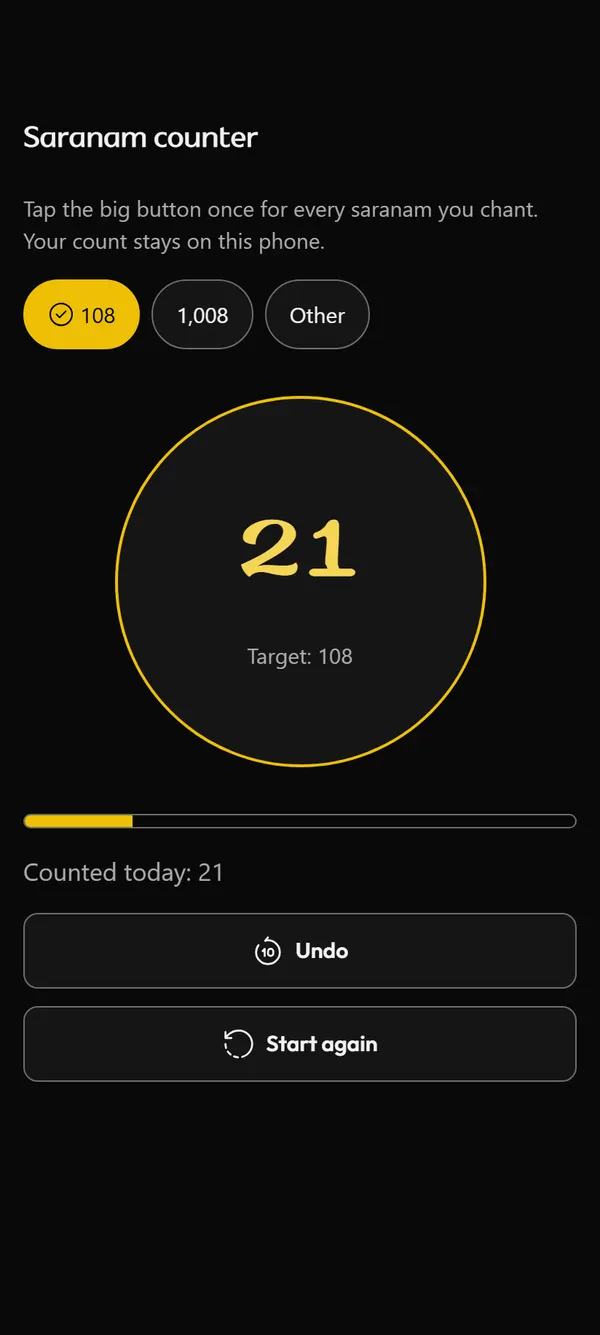
Saranam counter
Tap to count each Saranam. Choose a target of 108, 1,008 or any number from 1 to 100,000, undo the last count, start again, and see how many you counted today.
The counts stay on your phone and are included when you export your data.
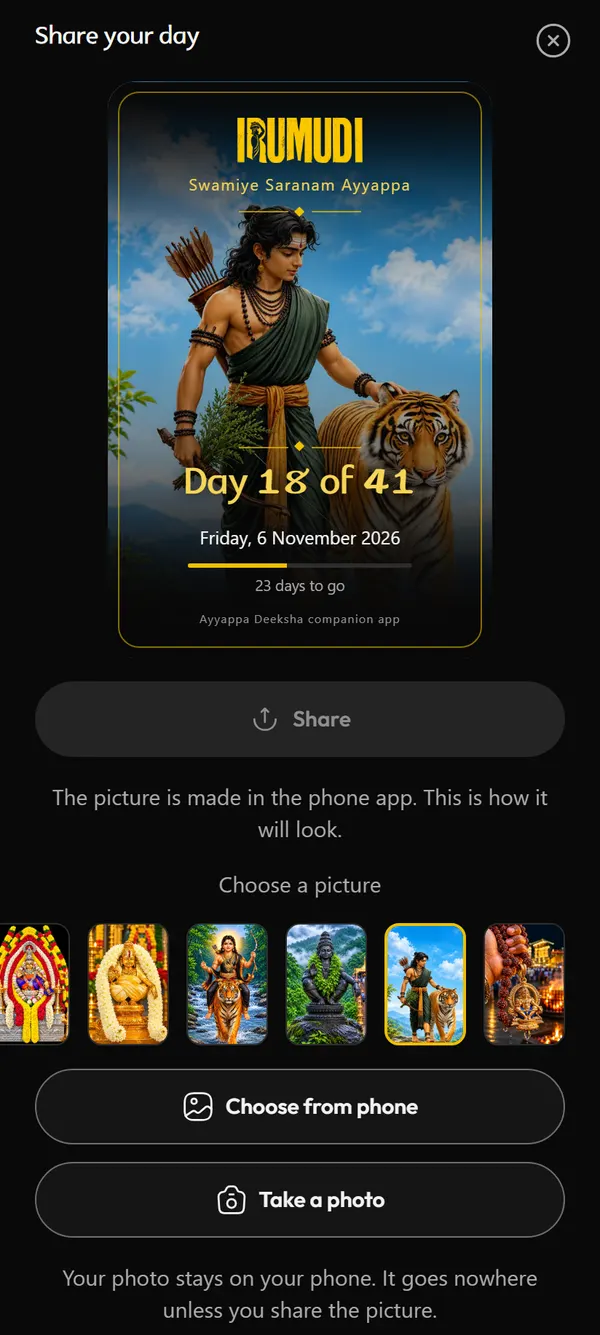
Share your day
Day 1 has a picture of its own, which no other day uses. The days after it go through a set of Ayyappa pictures one by one and then start again, and you can pick any other picture from the row.
Or use your own photo, from the gallery or the camera. Drag it and zoom it until it sits the way you like, and flip a selfie if you want. Share the card to any app or save it to your gallery. The photo is not uploaded anywhere.
Read and learn
Saranam texts, the Puja Vidhanam guide, guides for the pilgrimage and the Swami names.
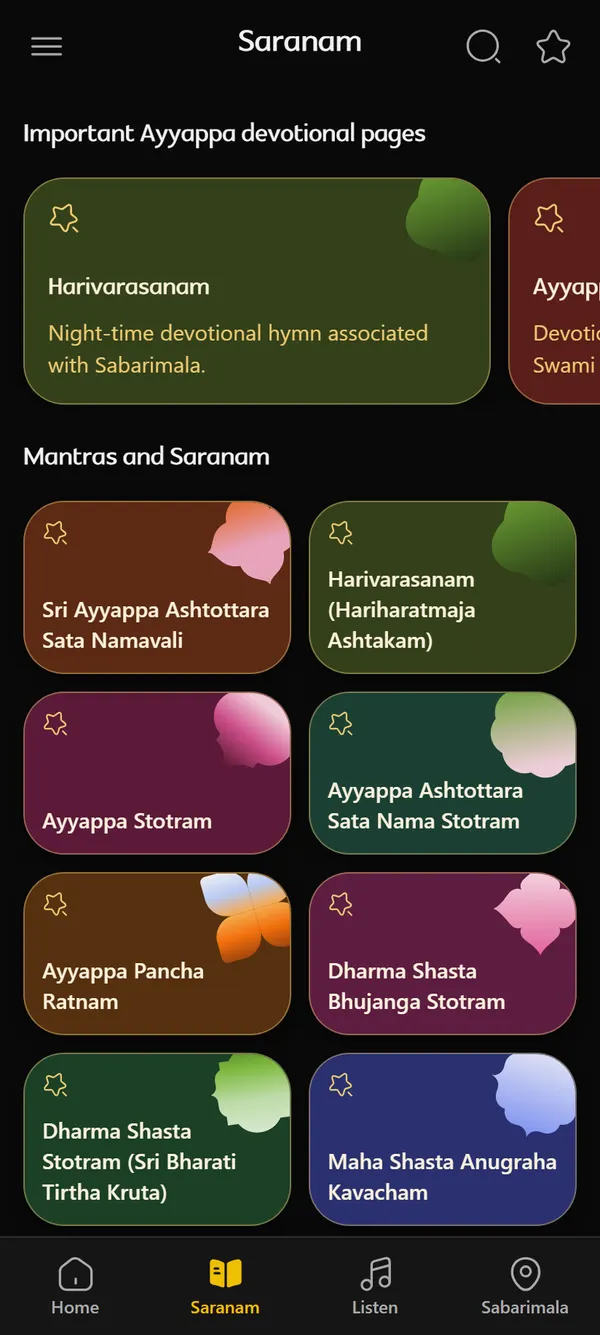
Saranam: Ayyappa texts
The 22 texts are compiled into the app, so they open instantly and with no connection. Search matches titles and every line of every text, in all four scripts. Favourite a text to find it again quickly.
Ten of the texts were typed from artwork the owner supplied. The rest were pasted in by the owner as Telugu text, and their other three scripts were written out from it by program. None has yet been checked by a person who knows them. Rights are not yet confirmed.
One text, four scripts
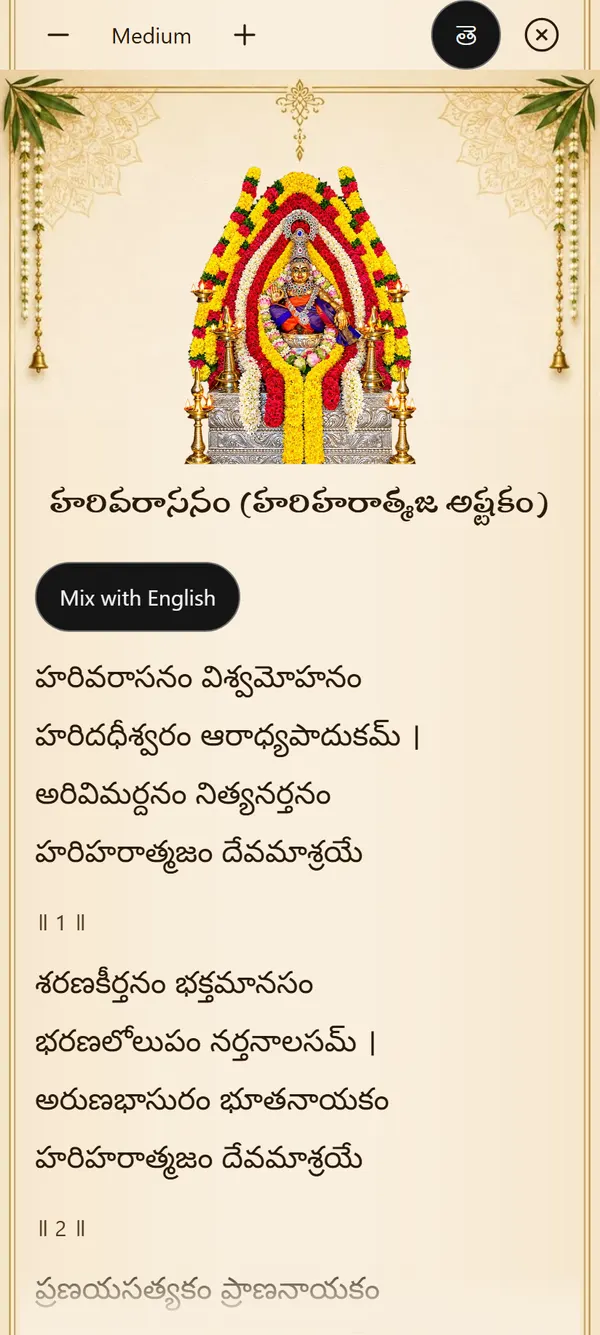
The reader opens in your app language and a menu switches script. “Mix with English” follows every two lines with the same two lines in English letters. The English is a transliteration so it reads the same words aloud. It is not a translation.
Choose from four text sizes. The screen stays awake while you read. The texts are written out in these four scripts only. The rest of the app is in six languages.
Puja Vidhanam guide
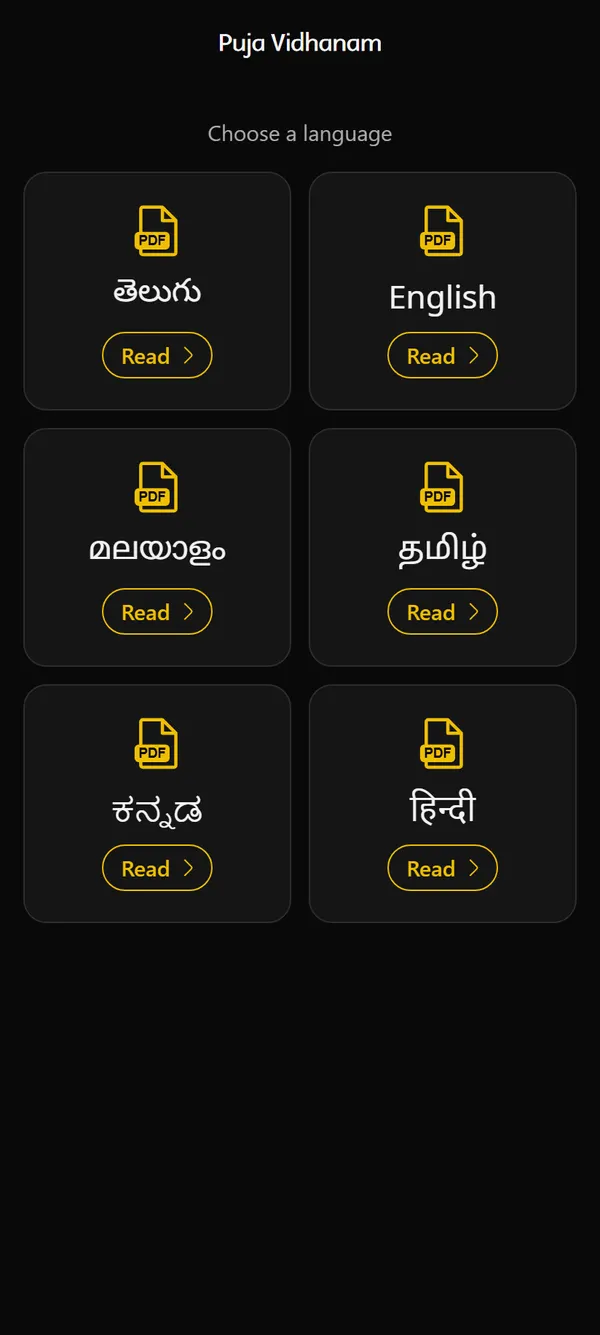
Open it from the card on Home. Choose a language and read the guide page by page, with zoom at 100, 150 and 200 percent. The guide is inside the app, so it needs no connection.
A download button hands the PDF to your phone’s share menu, so you can save it or send it to someone. The guide is 17 to 19 pages in each language.
The guide is the owner’s own document. A person who knows the puja has not yet reviewed the text of each language, and the rights to the artwork on its cover are not yet confirmed.
Pilgrimage guide and Deeksha guidelines
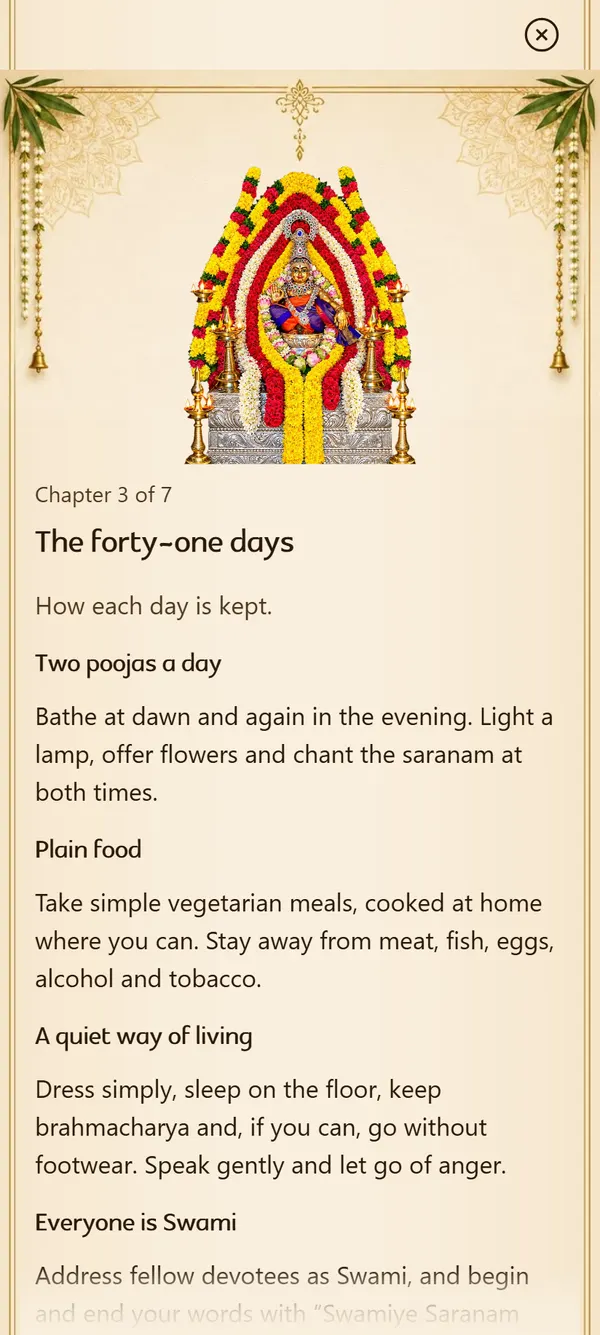
Two cards on Home and on the Sabarimala tab open them. The First pilgrimage guide has seven short chapters. The Deeksha guidelines list 27 rules, each in plain words.
These were written for the app and are provisional. Please check them with your own Guru Swami, whose customs may differ.
The 18 Swami names
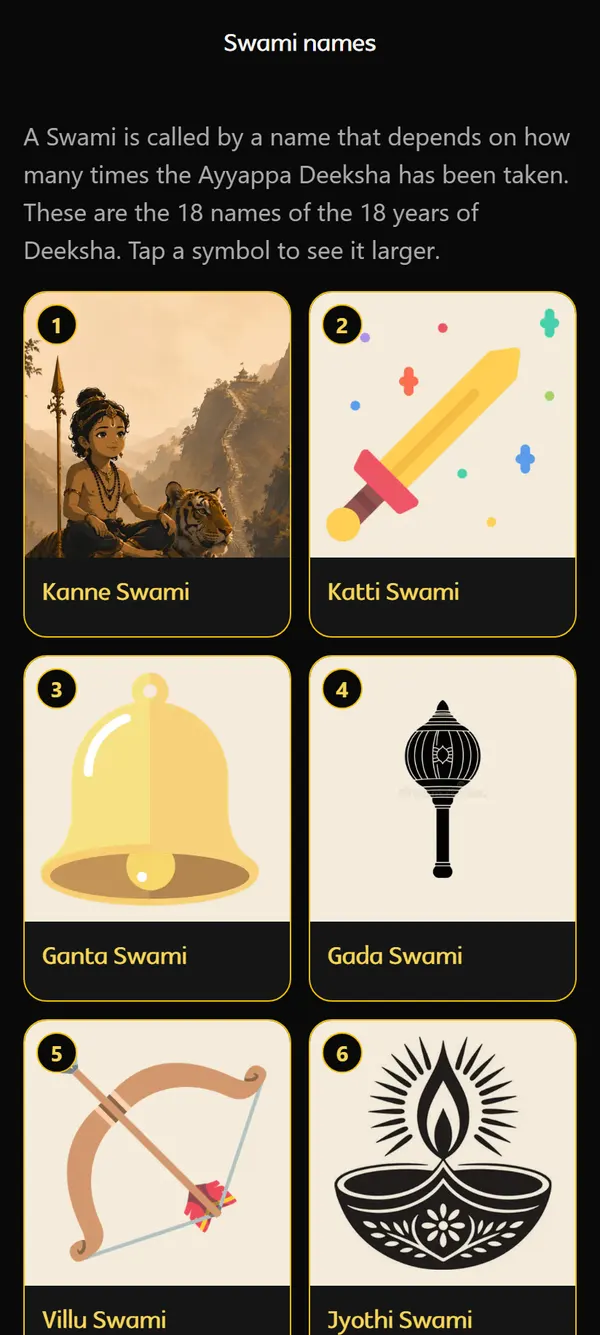
Eighteen names, from Kanne Swami for the first time to Narikela Swami for the eighteenth. Each card has a picture, its number, the name in your language and the name in English. Tap one to see its picture large and the name in the other languages.
Some names, and their order, differ between Guru Swami traditions. This is not an official list followed the same way everywhere, so please confirm it with your own Guru Swami.
Listen and sing
Music and karaoke, played within each source’s rules.
Music and YouTube
Audio the rights holder has cleared plays inside the app and keeps playing when you leave the song, with a small player above the tabs. It can play in the background, with controls on the lock screen. Where allowed it can be saved on your phone (up to 500 MB, and re-checked online every 30 days).
YouTube videos play in YouTube’s own embedded player, with its controls and advertising, and need the internet. While you move around the app a playing video can float in a small card. It stops when you leave the app or lock the screen. Irumudi never plays YouTube in the background.
Irumudi never downloads, saves or extracts audio or video from YouTube. If a video was removed or blocked, the app says so and offers “Open in YouTube”.
Songs appear as they are published. Nothing is listed until it has been reviewed.
Karaoke to watch along
The Karaoke view in Listen plays karaoke videos in YouTube’s player so you can sing along. It does not record you.
In-app sing-along with moving lyrics, voice recording and Google Drive sync are planned for a later version. See “Coming later”.
Sabarimala and around you
Plan the trip, find Annadanam and Padi Pooja, walk the Pradakshana and see the sun and weather.
Plan your Sabarimala trip
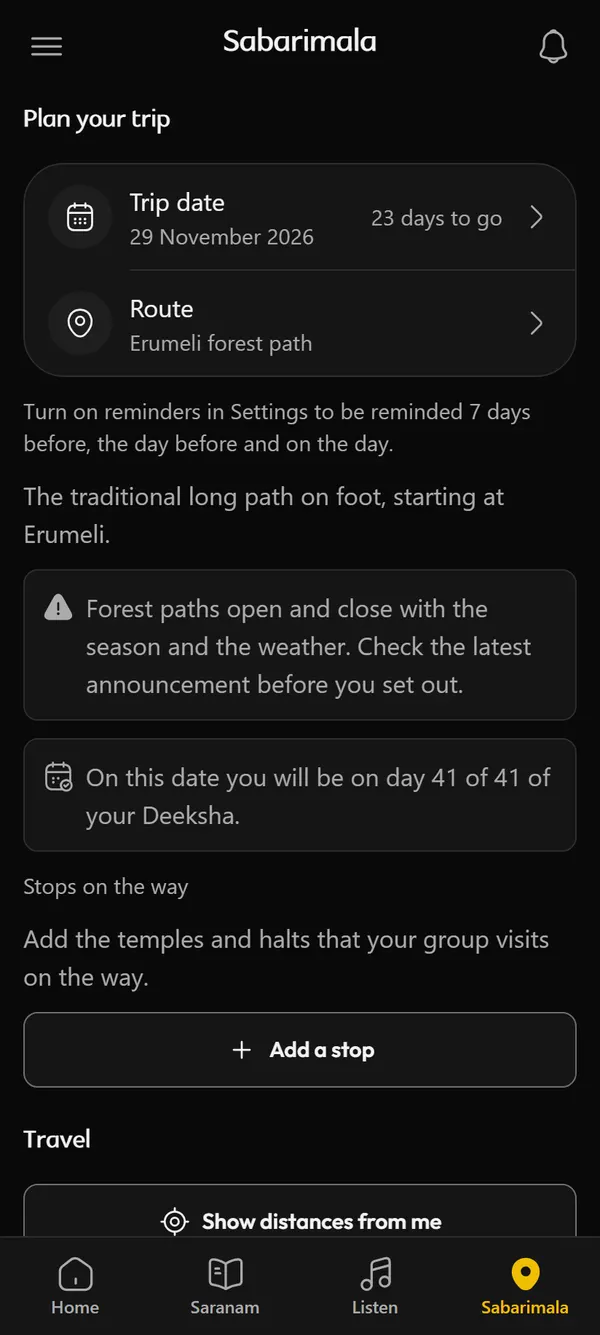
The Sabarimala tab holds your plan. Set the trip date to see the days to go and the day of your Deeksha you will be on. Pick a route and add the stops you want to make. The app warns that forest paths open and close with the season.
Two checklists, one for the irumudi and one for packing, can be ticked, edited and reordered. If you note that you have booked the queue, the app remembers it. The link to the booking site opens in your browser.
With Reminders on, a set trip date rings at 8:00 am a week before, the day before and on the day. A season timeline for 2026-27 is shown as expected dates only, with its sources, until you enter the dates from the Devaswom Board.
The guides and checklists were written for the app and are provisional. Please check them with your own Guru Swami and with the temple’s official notices before you travel.
Travel and Explore
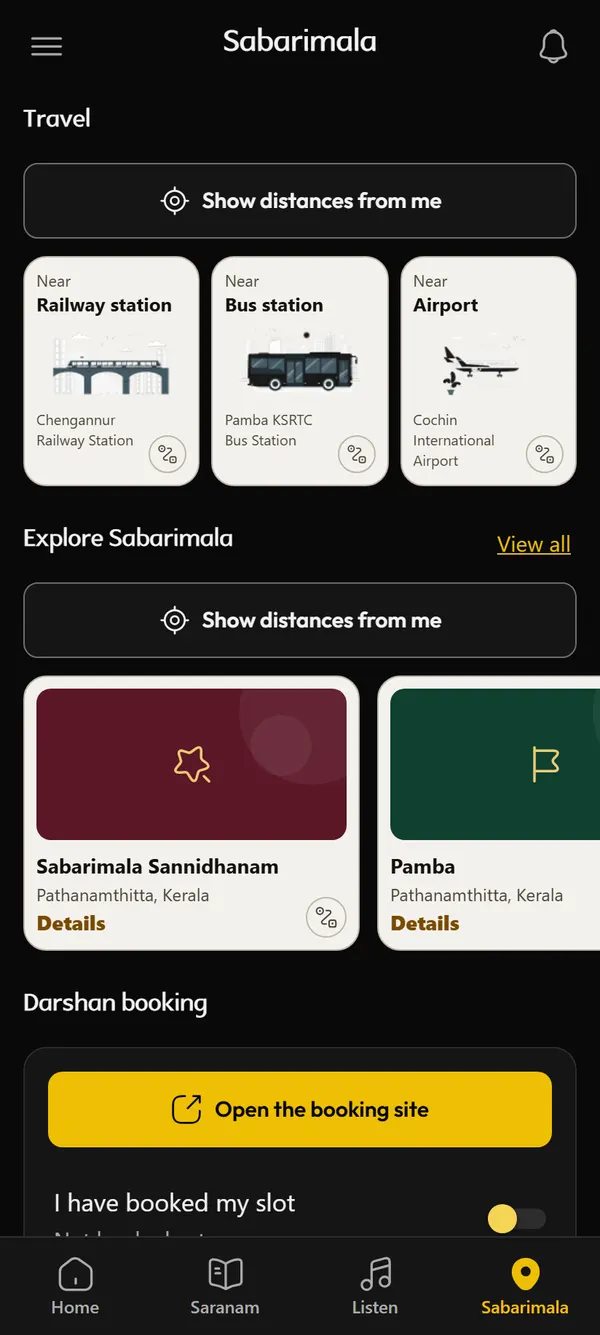
Travel cards show the nearest railway station, bus station and airport, each with its straight-line distance and a Directions button that opens your maps app. Explore is a row of cards for about a dozen well-known places in the area, with a View all link.
Distances appear only after you allow your location or tap “Show distances from me”. They are worked out on your phone.
Distances are straight lines, not road distances. Place names and notes are provisional and still need a local check.
Annadanam and meals
Choose a city, or let the app use your location once, and the list shows the nearest first. Search by name or area, and use the filter to choose a meal (breakfast, lunch, dinner), “open now” according to published hours, and a distance within 1, 3, 5, 10 or 25 km. A listing has a page of its own with its address, scheduled times, a Call button, directions in your maps app, whether it is free, by donation or paid, and whether it is vegetarian.
Every listing shows where its details came from and when they were last checked. Anything unknown is shown as not provided, never guessed. The list does not include every service.
Listings appear as they are verified and published. Please confirm timings before you travel.
Padi Pooja dates
Filter by when (today, 7 days, 30 days), by food and by meal. The list is nearest first, and it is kept on your phone for offline use.
Dates appear as they are added and verified.
Pradakshana
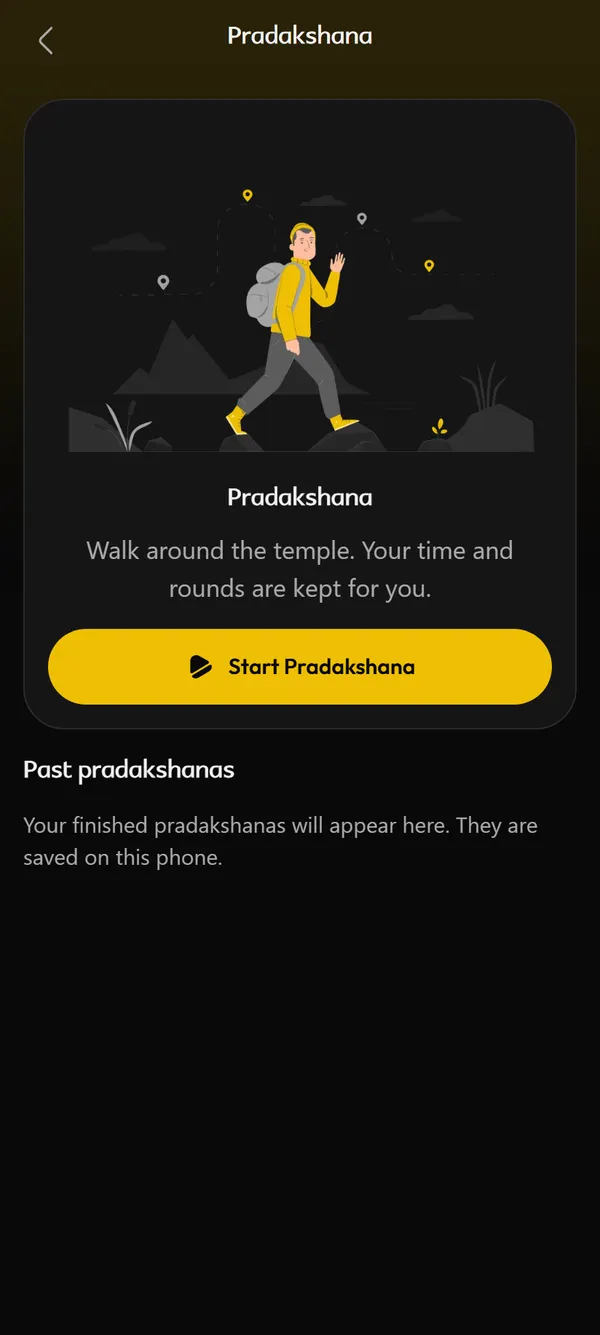
Start, pause and resume, and add a round with a tap. It does not use GPS or sensors. Time and rounds are saved on your phone as you go, so it keeps counting if the phone locks, and a history lists your past walks with a total.
A finished walk can be turned into a picture to share.
Sun and weather
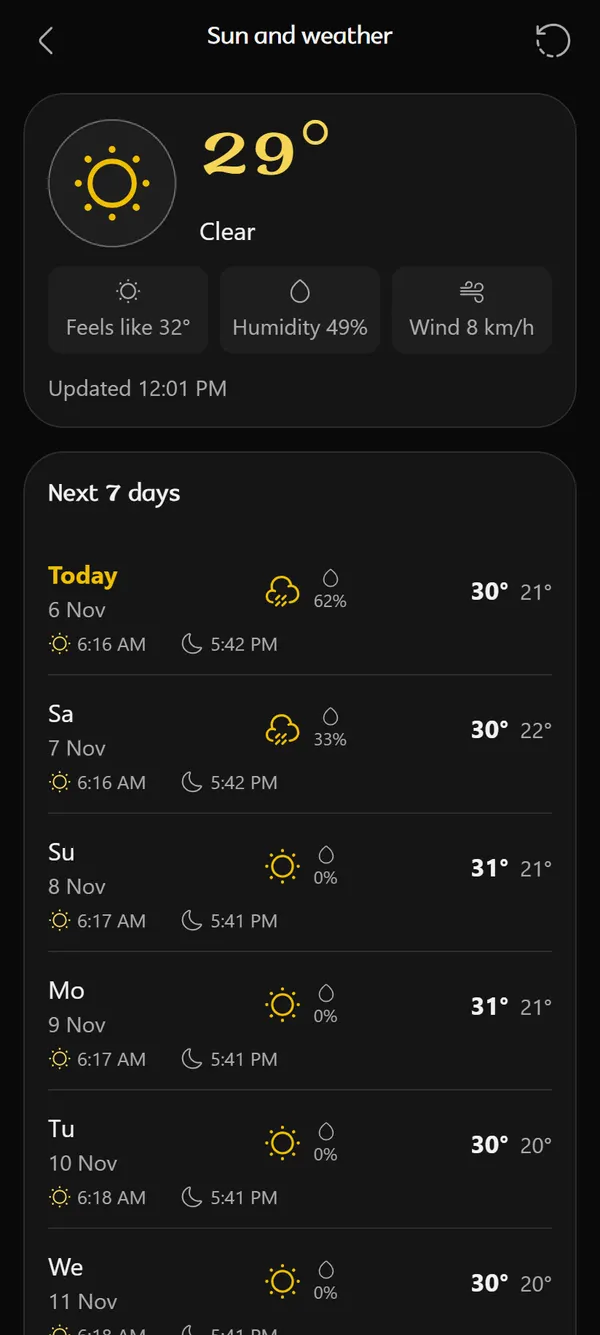
A card on Home shows today’s sunrise and sunset, worked out on your phone from a place you saved. The Sun and weather page adds the weather now and for seven days: the chance of rain, the high and the low.
Weather appears only after you tap “Get weather” on a card that names Open-Meteo.com. Only then is a place, rounded to about a kilometre, sent to that service. “Turn off weather” stops it, and the app never asks for it on its own.
Yours alone
Language, privacy, news and the things you can take with you.
Alerts and offers
The bell opens Alerts. The first row is your daily reminder. Below it the team’s announcements are cards, grouped as Today, Yesterday and then by date. Tap a card to read the whole message, and to open its link if it has one.
Home can also show a “Swami Saranam” row of offers from shops. An offer can be for everywhere, or only within 5, 10 or 20 km of the shop, and your phone checks that against the place you chose, so the place is never sent. Tap the heart to keep an offer, and it goes by itself when the offer ends.
Everything here is published by the team. There is no advertising network and no tracking.
Announcements and offers appear only when the team has published them. Nothing is invented to fill the space.
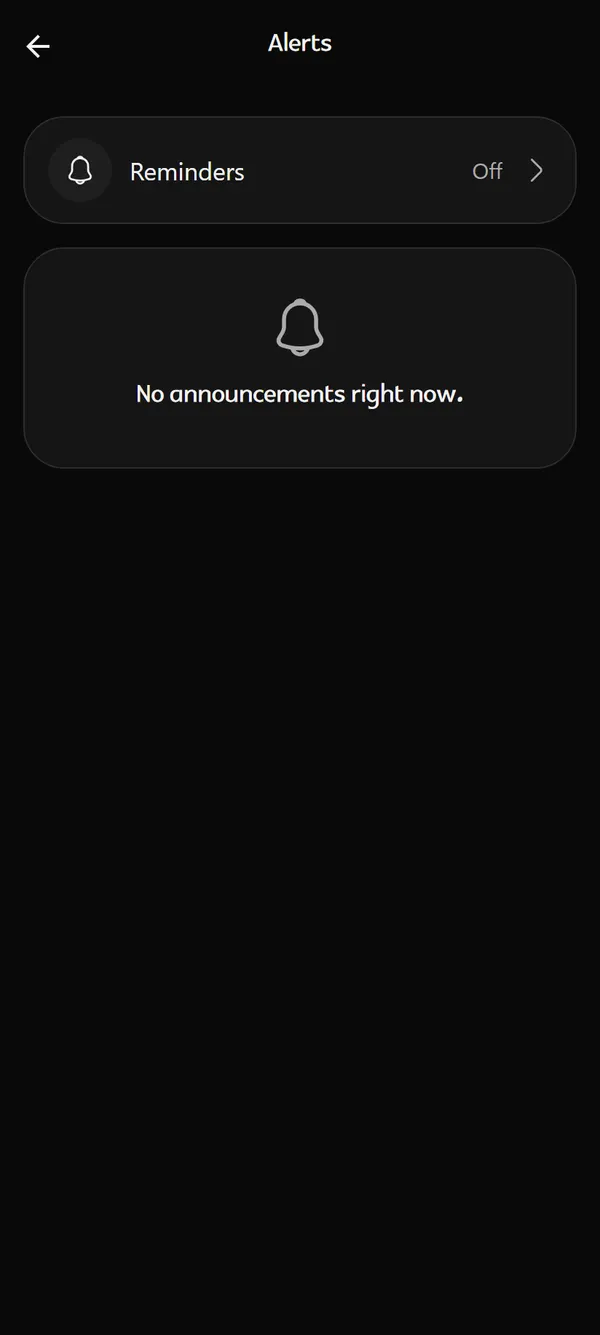
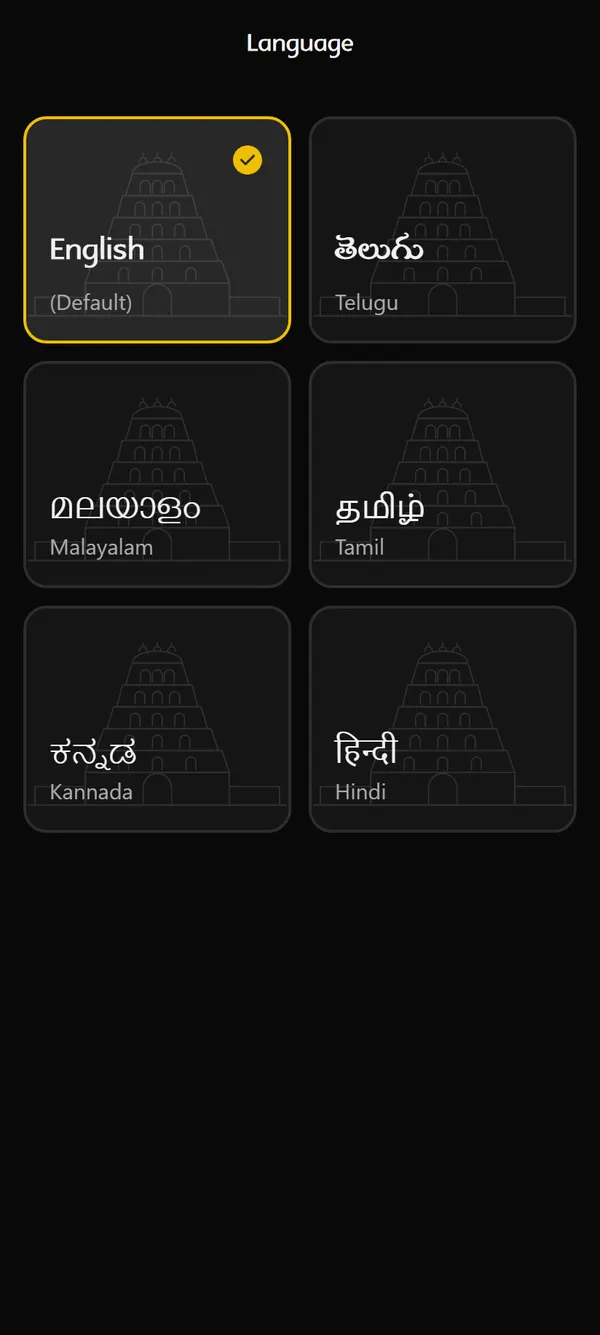
Six app languages
Choose on the first screen and change it any time from the menu. Text size has four steps. The Puja Vidhanam guide and the Swami names are in all six languages.
The translations into Telugu, Malayalam, Tamil, Kannada and Hindi still need a native reader’s sign-off.
Your picture, and the weekday paintings
Choose a picture from your phone or take one with the camera, then drag and zoom it until it sits in the oval the way you like. The picture is kept whole, and it stays on your phone. Without one, the menu shows the painting for the day of the week. The splash screen changes with the day too.
The camera is asked for only when you choose to take a photo.
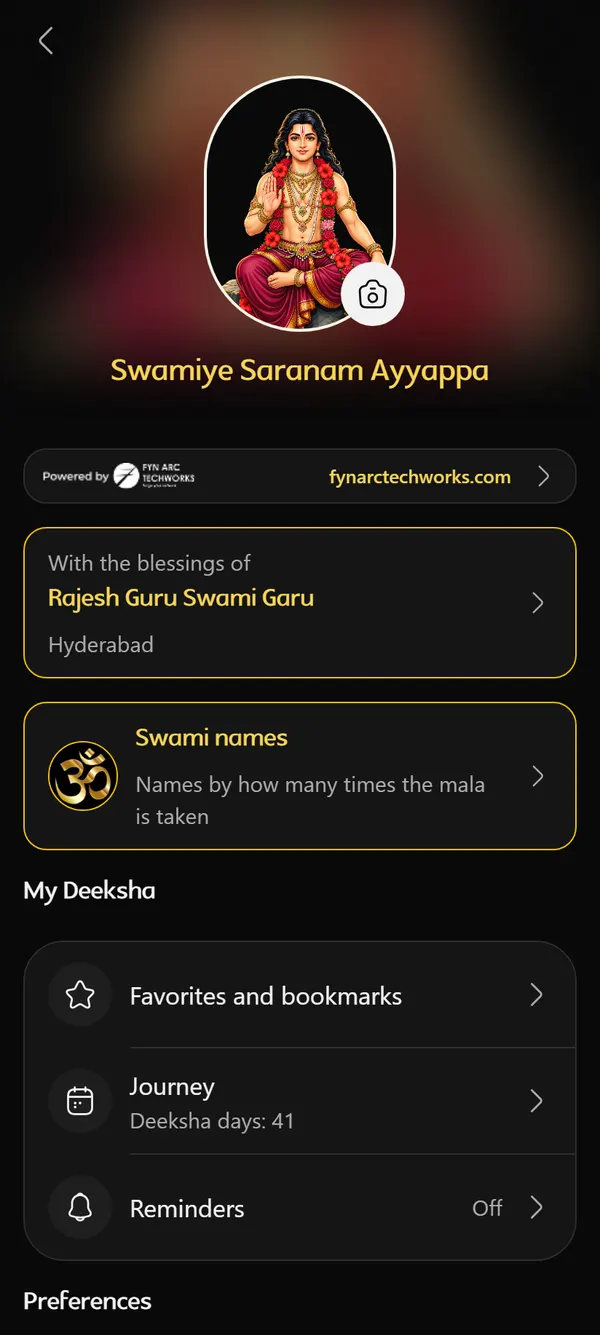
With the blessings of a Guru Swami
A card in the menu opens a page with a banner picture, a blessing line and buttons to his Instagram and to call him. Nothing is opened or dialled until you tap.
The words are the owner’s and are provided in six languages that need a native reader’s check. The rights to the banner picture are not yet confirmed.
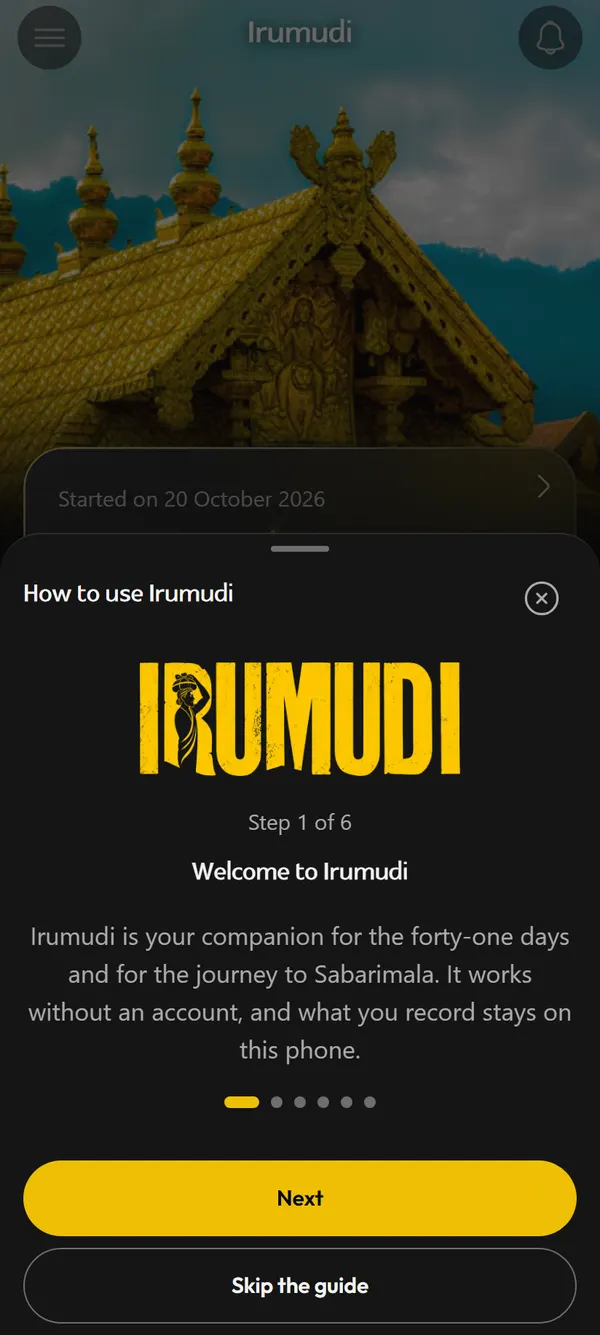
A short guide to the app
The first time you reach Home, a short guide walks through the app in six steps: welcome, your days, Saranam, Listen, Sabarimala, and near you and settings. Use Back, Next or Skip. To see it again, open the menu and choose “How to use Irumudi”.
Update notices
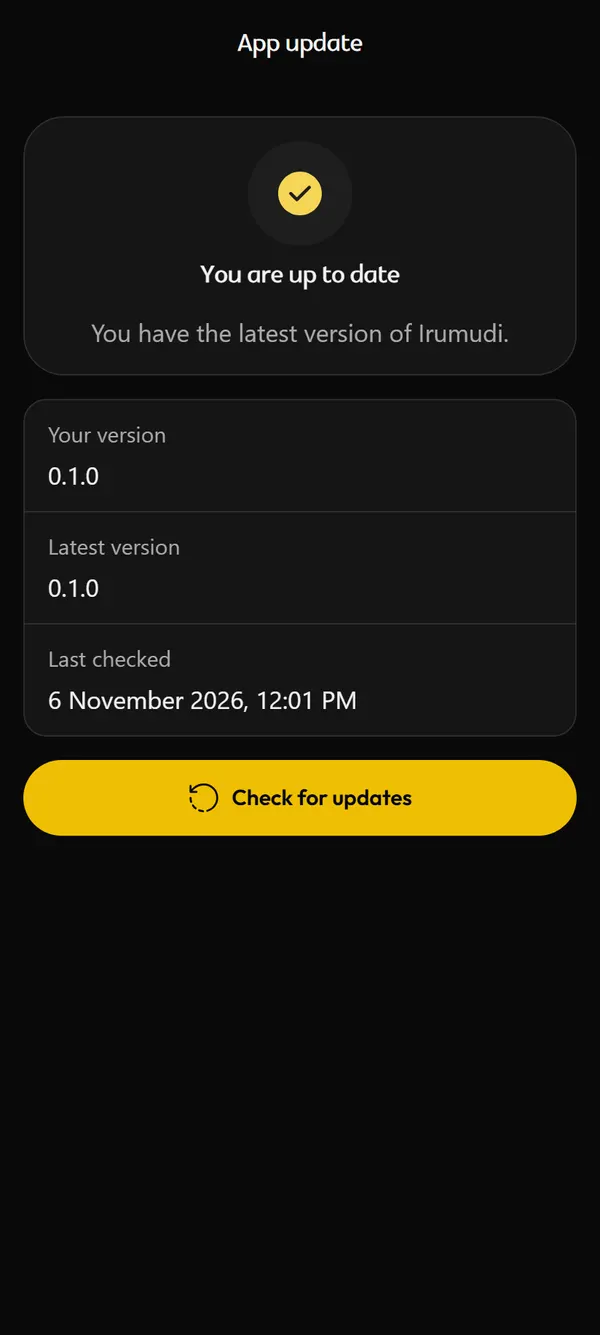
The app asks our server whether a newer version exists when it starts and again after a few hours. If there is one, a popup offers “Update now” or “Later”. The menu shows “Up to date” or the new version, and the App update page has a Check for updates button.
Only if a version is too old to work is the notice one you cannot dismiss.
Works offline
Your tracker, check-ins, checklist, counter, trip plan and the Saranam texts need no connection, and neither does the Puja Vidhanam guide. Songs, listings and Padi Pooja dates download when you are online and are kept for later. Weather, updates, YouTube and directions need the internet.
Your data stays with you
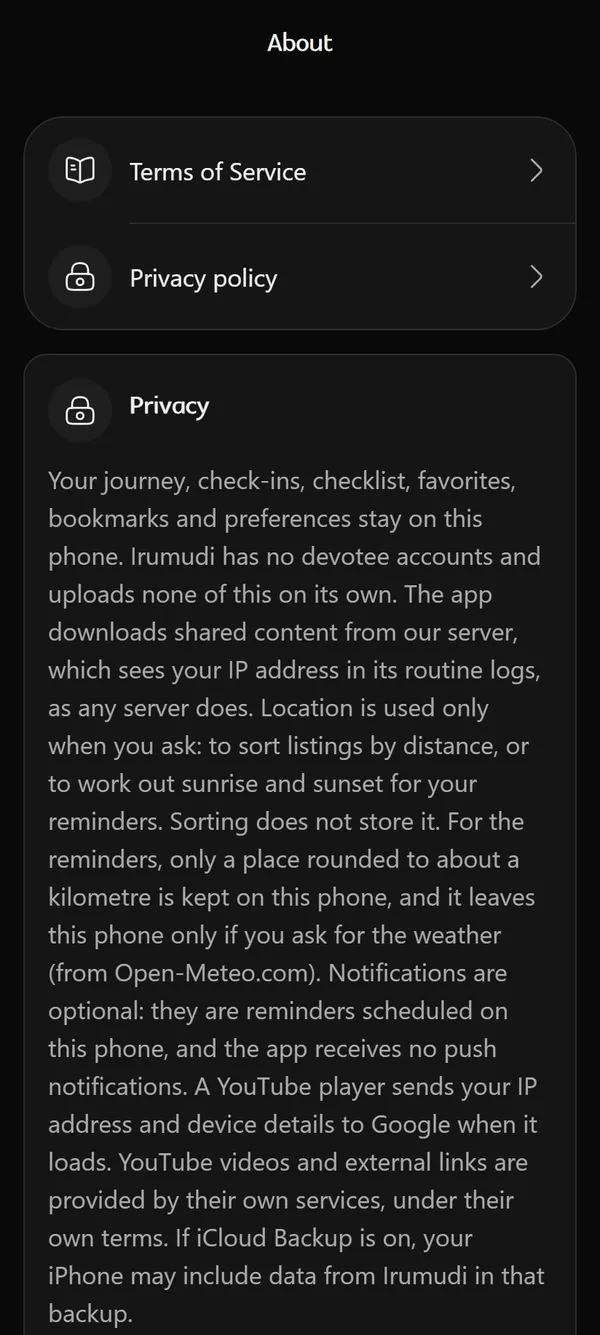
Your journey, check-ins, checklist, favourites, bookmarks, Pradakshana history, Saranam counts, trip plan and preferences stay on your phone. In the menu, under Manage, “Your data” exports them to a file, and Import adds them back without removing anything. Recordings are not part of that file.
Downloading shared content sends your IP address to our server in routine logs, as any server does, and a YouTube player sends your IP address and device details to Google when it loads. Location is used only when you ask: once, to sort by distance, and for sunrise and sunset, and a place rounded to about a kilometre is kept on your phone. That place goes to Open-Meteo.com only if you tap “Get weather”.
Coming later
These are planned for a later version and are not part of the version in the stores today.
- Sing along with moving lyrics. With a backing track the rights holder has authorised. It will never use audio taken from YouTube.
- Voice recordings. Saved on your phone. A recording is your voice only and does not contain the backing music.
- Google Drive backup. Keep a copy of your Deeksha data in your own Google Drive and bring it to a new phone. It will work only after you connect your own account. It is planned for a later version.
Get Irumudi
Available now for Android and iPhone.
Available now on Google Play and the App Store